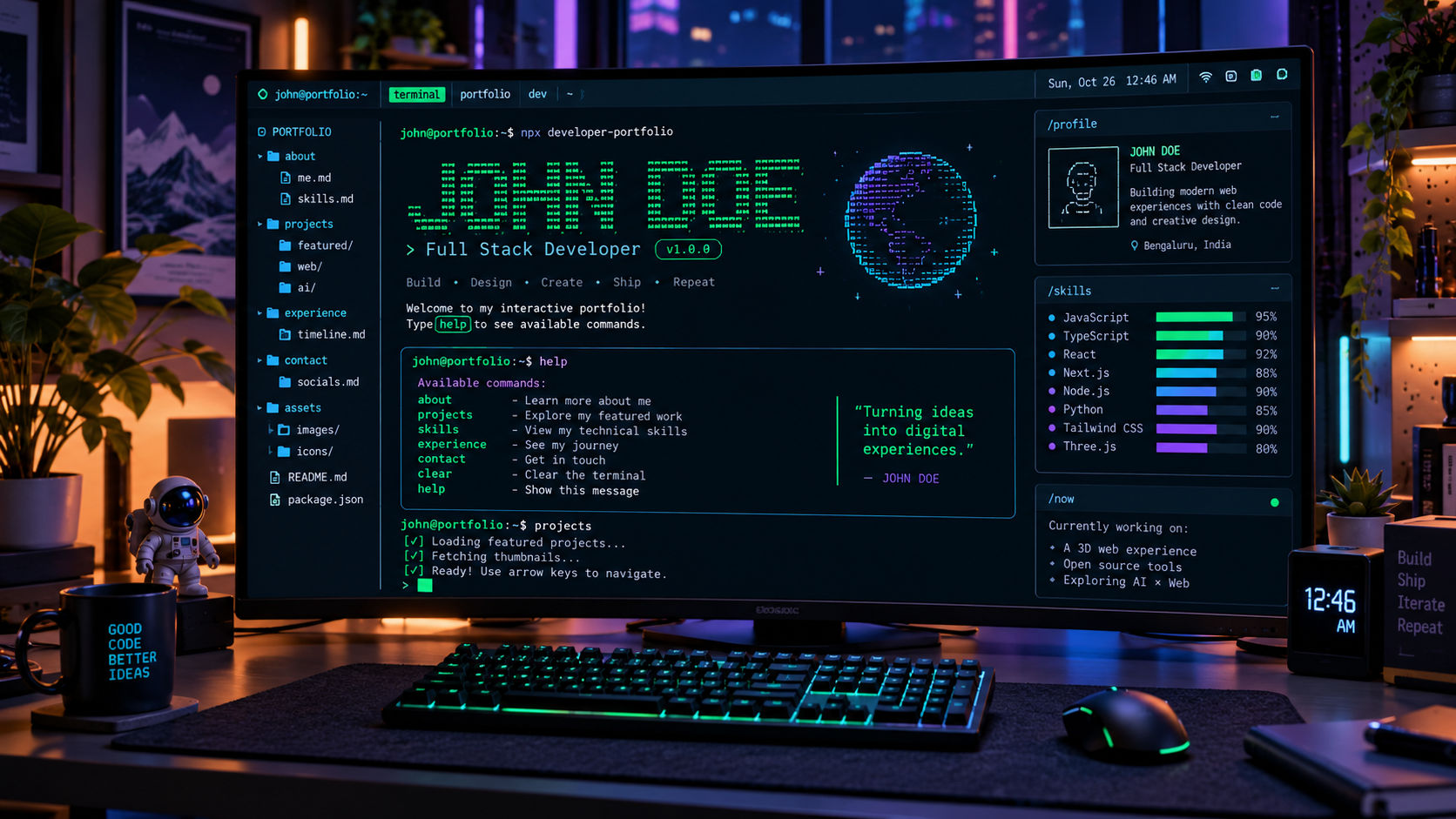
Terminal & CLI Portfolios: Why Engineers Love Them and How to Create Yours
Most developer portfolios follow the exact same blueprint: a hero section with a smiling avatar, a grid of project cards, and a skill bar claiming "90% proficiency in JavaScript." While clean and functional, these templates rarely leave a lasting impression on senior engineers or technical recruiters.
Enter the Terminal and CLI (Command-Line Interface) portfolio. By stripping away heavy UI frameworks in favour of a blinking cursor, monospace fonts, and interactive shell commands, you immediately signal technical depth, creativity, and a genuine love for the craft.
Let’s look at why command-line portfolios are a massive hit in the engineering community and how you can build your own—either as an interactive web terminal or an actual executable npx package.
Why Engineers and Hiring Managers Love Terminal Portfolios
A terminal portfolio isn't just a nostalgic gimmick; it solves real problems for both the creator and the reviewer:
- Instant Technical Credibility: Senior developers live in the terminal. Presenting your work in a shell environment feels like home to the very people who will be interviewing you.
- Zero Design Overhead: Backend, DevOps, and systems engineers often struggle with CSS and visual layout. A terminal interface lets you build a sleek, cohesive aesthetic using only typography and colour schemes (like Dracula, Monokai, or Solarized).
- Blazing-Fast Performance: With no heavy hero images or complex DOM trees, web-based terminal portfolios load almost instantaneously, scoring a straight 100 on Google Lighthouse.
- Interactive Engagement: Typing
help, ls, or cat resume.txt turns passive scrolling into active exploration, keeping hiring managers on your page much longer.
Two Ways to Build Your Terminal Portfolio
Before writing code, decide where your terminal will live:
- Web-Based Terminal Emulator: A website that looks and behaves like a terminal inside the browser. Best for broad accessibility (non-technical recruiters can still use it).
- Executable NPX Card: A real Node.js CLI package published to npm that anyone can run in their own local terminal using
npx your-username.
Approach 1: Building a Web-Based Terminal Portfolio
To build a browser-based terminal in React or vanilla JavaScript, you need a state history array, an input listener, and a command parser.
1. Define Your Command Map
Keep your commands intuitive and UNIX-inspired, alongside custom shortcuts for non-technical visitors:
const commands = {
  help: "Available commands: about, projects, skills, contact, clear",
  about: "Hi, I'm a Full-Stack & DevOps Engineer passionate about distributed systems.",
  skills: "Languages: Go, TypeScript, Rust, Python | Infra: Docker, Kubernetes, AWS",
  contact: "Email: dev@example.com | GitHub: [github.com/username](https://github.com/username)",
};
2. Handle Input and Command History
Capture the Enter key, parse the input string, and push both the command and its output into a history state array.
function handleCommand(input) {
  const cleanInput = input.trim().toLowerCase();

  if (cleanInput === 'clear') {
    setHistory([]);
    return;
  }

  const output = commands[cleanInput] || `Command not found: ${cleanInput}. Type 'help' for a list of commands.`;
  setHistory(prev => [...prev, { command: input, output }]);
}
3. Essential UX Enhancements
- Auto-Run Welcome Script: Automatically execute a
welcome or help command on page load so visitors aren't staring at a blank black screen.
- Clickable Command Pills: Not every HR recruiter wants to type. Include clickable command buttons (
[about], [projects], [resume]) that trigger the terminal commands when clicked.
- Tab Autocomplete & Arrow Keys: Implement
Tab completion for command names and Up/Down arrow keys to cycle through previous commands.
Approach 2: Creating an Executable npx CLI Portfolio
Want to impress fellow developers at hackathons or on X/GitHub? Publish a CLI card that runs directly in their terminal via npx.
1. Initialize the Package
Create a new directory and set up your package.json. Ensure the package name matches your handle (e.g., yourname).
{
  "name": "yourname",
  "version": "1.0.0",
  "bin": {
    "yourname": "./index.js"
  },
  "dependencies": {
    "boxen": "^7.1.1",
    "chalk": "^5.3.0"
  }
}
2. Write the CLI Script (index.js)
Use libraries like chalk for terminal colours and boxen to draw clean ASCII borders around your details:
#!/usr/bin/env node
import chalk from 'chalk';
import boxen from 'boxen';

const cardContent = `
${chalk.bold.green('Alex Rivera')} -${chalk.white('Senior Systems Engineer')}

${chalk.cyan('Work:')}     Staff Engineer @ TechCorp
${chalk.cyan('GitHub:')}   [https://github.com/alexrivera](https://github.com/alexrivera)
${chalk.cyan('Portfolio:')} [https://alexrivera.dev](https://alexrivera.dev)
${chalk.cyan('Card:')}${chalk.yellow('npx alexrivera')}
`;

console.log(boxen(cardContent, { padding: 1, margin: 1, borderStyle: 'round', borderColor: 'green' }));
Once published via npm publish, anyone in the world can run npx yourname in their terminal to see your interactive business card.
Best Practices to Keep in Mind
- Provide a GUI Escape Hatch: Always include a
gui command or a top-corner toggle button that switches to a standard, readable layout for recruiters in a rush.
- Add Easter Eggs: Include fun commands like
sudo, whoami, matrix, or coffee to reward curious engineers testing your shell.
- Optimize for Mobile Keyboards: On smartphones, virtual keyboards take up half the screen. Ensure your terminal container scrolls smoothly and offers tap-to-run commands on mobile viewports.