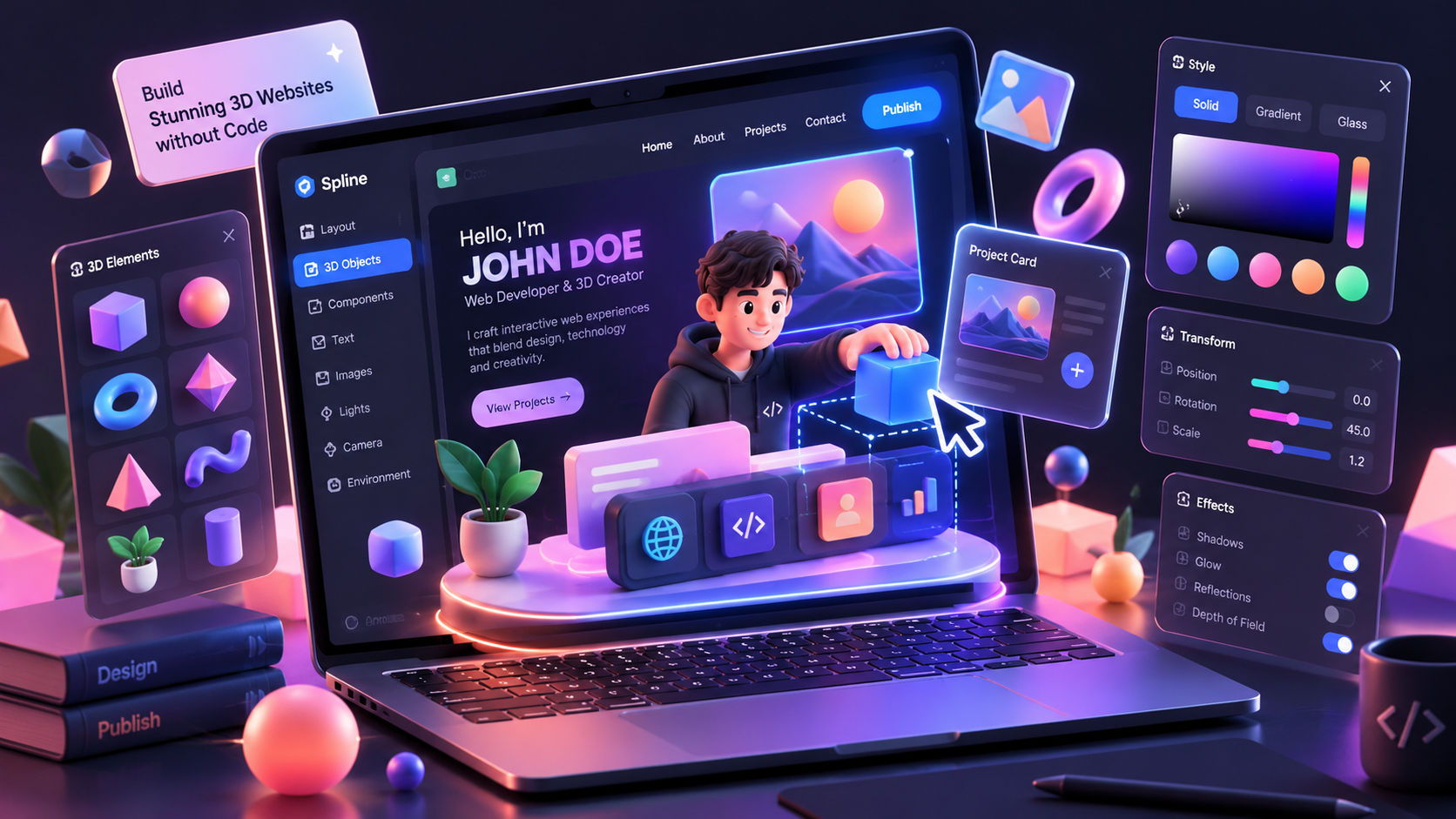
How to Build an Interactive 3D Developer Portfolio Without Touching Three.js
In a sea of standard grid-based developer portfolios, introducing subtle three-dimensional depth and interactive motion instantly distinguishes your work. When visitors can rotate a floating object, explore an isometric workspace, or watch scene lighting track their cursor, your portfolio transitions from a static digital resume to a memorable product experience.
Traditionally, achieving this required diving deep into Three.js, mastering matrix transformations, understanding camera projection math, writing custom GLSL shaders, and managing WebGL render loops.
The good news? You don't need to touch Three.js to build a modern, high-performance 3D portfolio.
With modern visual 3D design tools and declarative runtimes—chiefly Spline—combined with smart CSS techniques, you can design, animate, and ship interactive 3D experiences with the simplicity of embedding a standard component.
Here is the exact playbook to build your own.
1. Why Skip Raw Three.js?
Three.js remains an incredible library, but for a personal portfolio, it often introduces friction:
- Steep Learning Curve: Calculating bounding boxes, setting up directional lights, handling texture loaders, and configuring shadow maps demands extensive boilerplate.
- Maintenance Overhead: Keeping WebGL scenes responsive across differing device pixel ratios, aspect ratios, and orientations takes dozens of lines of delicate event math.
- Workflow Disconnect: Designing a 3D asset in Blender and manually exporting/importing
.gltf files into code frequently results in material and lighting discrepancies.
By leveraging Spline, you get a collaborative browser-based 3D design suite tailored specifically for web developers. You design visually, set up interactions visually, and embed the scene directly into your React, Next.js, or vanilla HTML project with zero shader code.
2. Step 1: Design Your Scene in Spline
You do not need prior 3D modeling skills to create something compelling. High-converting portfolio concepts include:
- An Interactive Floating Device: A low-poly laptop, phone, or retro game console displaying your project screenshots.
- Abstract Geometric Objects: Smooth glass-morphism spheres, floating torus knots, or metallic shapes that react to mouse position.
- An Isometric Room: A miniature developer desk featuring a coffee mug, keyboard, and miniature screens.
Design Workflow:
- Head to Spline.design and launch a new canvas.
- Add primitives (Cubes, Spheres, Rounded Rectangles) or import existing assets from the Spline 3D Asset Library.
- Apply materials: use Glass, Matcap, or Fresnel shaders directly from the inspector panel to achieve a polished, high-end aesthetic.
- Add lighting: a warm directional light paired with a subtle ambient fill usually yields optimal depth.
One of Spline’s biggest superpowers is the Events panel. Without writing JavaScript listeners, you can bind interactions directly within the editor:
- Look At: Direct an object (or your scene camera) to smoothly track the user's cursor.
- Hover Transitions: Scale an icon up by
1.1x or tilt a card along the Y-axis when hovered.
- MouseDown / Touch: Trigger a bounce animation or color shift on click.
- Scroll States: Rotate an asset incrementally as the user scrolls down the landing page.
Once your scene looks and responds the way you want, click Export -> Code -> Select React or Vanilla Web Component.
4. Step 3: Integrating Into Your Project
Option A: React / Next.js
Install the official lightweight Spline runtime:
npm install @splinetool/react-spline @splinetool/runtime
Now, embed your scene directly inside any hero section or card:
import React, { Suspense } from 'react';
import Spline from '@splinetool/react-spline';

export default function HeroSection() {
  return (
    <section className="relative w-full h-[600px] flex items-center justify-center bg-slate-950 overflow-hidden">
      {/* Background Gradient / Content */}
      <div className="absolute z-10 pointer-events-none text-center">
        <h1 className="text-5xl font-extrabold text-white tracking-tight">
          Full-Stack Systems Engineer
        </h1>
        <p className="mt-4 text-slate-400 max-w-md mx-auto">
          Crafting scalable cloud architectures and delightful web experiences.
        </p>
      </div>

      {/* Interactive 3D Scene */}
      <Suspense fallback={<div className="text-slate-500">Loading experience...</div>}>
        <Spline
          scene="https://prod.spline.design/your-unique-scene-id/scene.splinecode"
          className="w-full h-full"
        />
      </Suspense>
    </section>
  );
}
Option B: Vanilla HTML & JavaScript
If you aren't using a frontend framework, you can drop in the Web Component script tag:
<script type="module" src="https://unpkg.com/@splinetool/viewer@latest/build/spline-viewer.js"></script>

<div class="canvas-container">
  <spline-viewer url="https://prod.spline.design/your-unique-scene-id/scene.splinecode"></spline-viewer>
</div>
5. Alternative Technique: Pure CSS 3D Perspective Cards
If your portfolio needs subtle dimension rather than full 3D geometry, you can avoid loading any 3D runtime altogether by utilizing hardware-accelerated CSS 3D transforms.
Here is a lightweight, zero-dependency 3D project card with dynamic cursor tilt:
'use client';
import React, { useRef, useState } from 'react';

export function TiltCard({ title, description }: { title: string; description: string }) {
  const cardRef = useRef<HTMLDivElement>(null);
  const [transform, setTransform] = useState('');

  const handleMouseMove = (e: React.MouseEvent<HTMLDivElement>) => {
    if (!cardRef.current) return;
    const rect = cardRef.current.getBoundingClientRect();
    const x = e.clientX - rect.left - rect.width / 2;
    const y = e.clientY - rect.top - rect.height / 2;

    const rotateX = -(y / (rect.height / 2)) * 12;
    const rotateY = (x / (rect.width / 2)) * 12;

    setTransform(`perspective(1000px) rotateX(${rotateX}deg) rotateY(${rotateY}deg) scale3d(1.02, 1.02, 1.02)`);
  };

  const handleMouseLeave = () => {
    setTransform('perspective(1000px) rotateX(0deg) rotateY(0deg) scale3d(1, 1, 1)');
  };

  return (
    <div
      ref={cardRef}
      onMouseMove={handleMouseMove}
      onMouseLeave={handleMouseLeave}
      style={{ transform, transition: 'transform 0.15s ease-out' }}
      className="p-8 rounded-2xl bg-gradient-to-br from-slate-900 to-slate-800 border border-slate-700/50 shadow-2xl cursor-pointer will-change-transform"
    >
      <div style={{ transform: 'translateZ(40px)' }} className="transition-transform">
        <h3 className="text-2xl font-bold text-white">{title}</h3>
        <p className="mt-2 text-slate-300">{description}</p>
      </div>
    </div>
  );
}
This achieves tactile depth with zero bundle weight and 60fps performance on any device.
While 3D elements create an unforgettable first impression, bad performance will destroy recruiter conversions. Keep these rules in mind:
- Lazy Load Non-Critical Canvases: Do not let 3D assets delay your Largest Contentful Paint (LCP). Defer loading until after the hero copy is rendered, or load lower-page canvases using
IntersectionObserver.
- Limit Polygon Counts: Keep models clean and simple. Aim for under 30,000 polygons total per scene in Spline.
- Respect Mobile & Reduced Motion: Provide a clean fallback (static high-res WebP or SVG) for mobile devices or users who have
prefers-reduced-motion enabled:
@media (prefers-reduced-motion: reduce) {
  .canvas-container {
    display: none;
  }
  .static-fallback {
    display: block;
  }
}
- Preserve Scroll & Click Ergonomics: Always set
pointer-events: none on 3D canvases if they sit above or directly behind text links, ensuring users can still highlight copy and click navigation elements cleanly.
Final Thoughts
A world-class engineering portfolio doesn't require reinventing rendering engines from scratch. By combining tools like Spline with modern frontend component design, you can craft a distinctive 3D showcase in an afternoon—delivering an unforgettable interactive experience without writing a single line of raw WebGL.