● ENGINEERING DISPATCH•October 29, 2026•15 min read
How to Connect a Custom Domain to Your Developer Portfolio with Free Edge SSL
Give your developer portfolio a professional identity with a custom domain and free HTTPS. Learn how DNS records, domain verification, and edge SSL work, how to configure your domain correctly, and how to troubleshoot common connection issues.
#developer#portfolio#custom domain#SSL#HTTPS#DNS#web hosting#web development
How to Connect a Custom Domain to Your Developer Portfolio with Free Edge SSL
Ready when you are
Your next role starts with a better profile.
Build the portfolio, resume and profile card in one place. Start free, then upgrade only when you need more hosting or AI credits.
Free to startNo credit cardWatermark-free exports
Your developer portfolio is more than a collection of projects. It's your professional identity on the internet. And while a URL such as yourname.github.io or yourname.vercel.app works perfectly well, a custom domain like yourname.dev or yourname.com can make your portfolio easier to remember and share.
There's just one more thing you need to get right: HTTPS.
When someone visits your portfolio, their browser should establish a secure connection without displaying certificate warnings. The good news is that you can often configure HTTPS and edge SSL without paying for a separate certificate.
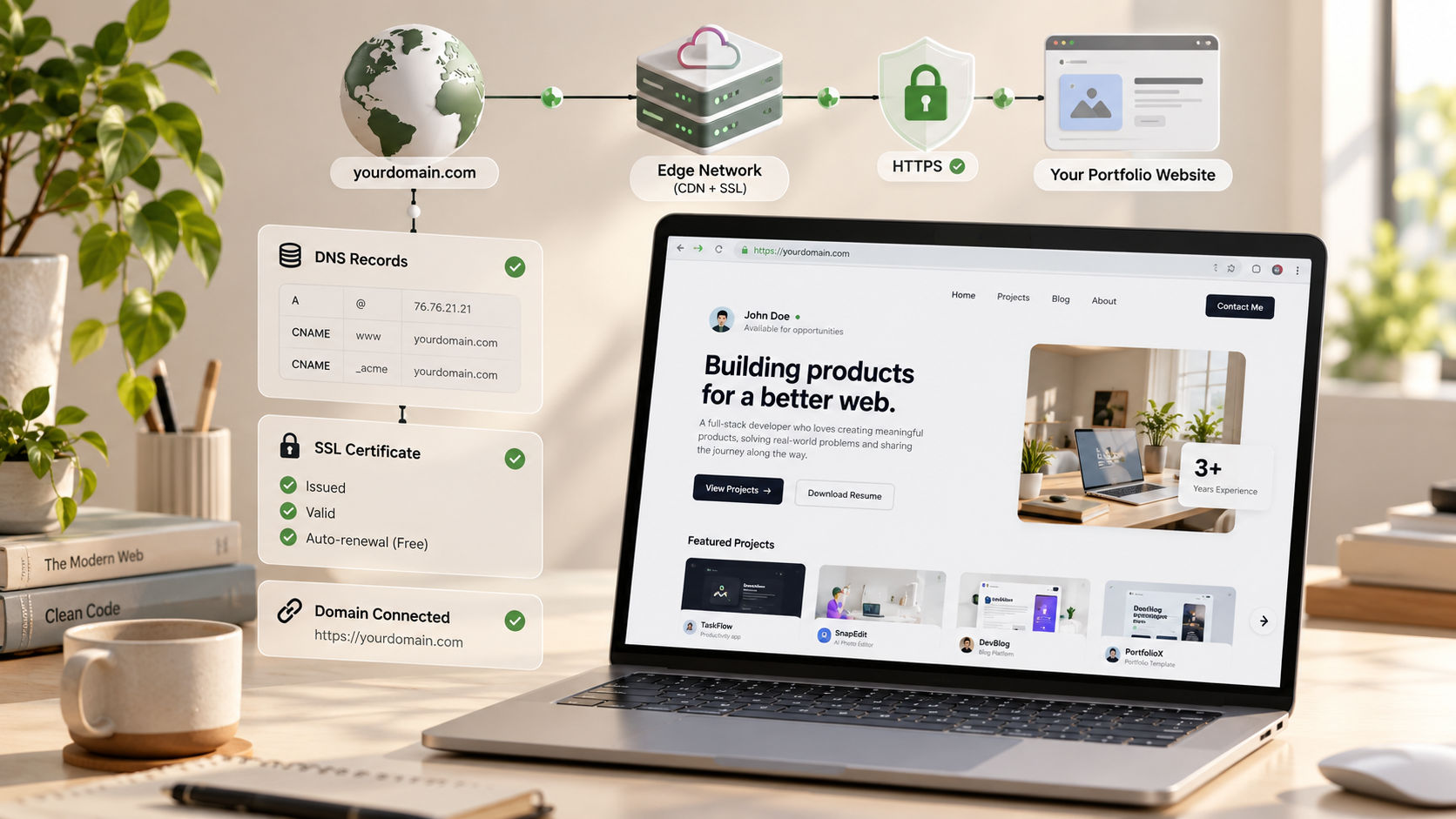
In this guide, we'll explain how custom domains work, how DNS records connect your domain to your portfolio, how free edge SSL protects visitors, and how to troubleshoot common configuration problems.
1. What Is a Custom Domain?
A custom domain is a web address that you register and configure for your website.
For example, imagine you're a computer science student applying for software development internships.
You could share a portfolio at:
alex-dev.vercel.app
alexdeveloper.github.io
alexmorgan.dev
All three can host a portfolio, but the last example gives you a domain you control through your registrar's DNS settings.
A custom domain can help you:
Create a memorable professional identity.
Share your portfolio more easily on your resume and LinkedIn profile.
Maintain a consistent URL even if you change hosting providers.
Build a recognizable home for your projects, blog, and contact information.
A custom domain doesn't automatically improve your chances of getting hired. The quality of your projects and the clarity of your presentation still matter most. The domain simply makes your work easier to access and share.
2. What Is Edge SSL, and Why Do You Need It?
When you visit a website over HTTPS, your browser establishes an encrypted connection using TLS, the technology commonly referred to as SSL.
Although people still say "SSL certificate," modern websites use TLS.
Edge SSL means that TLS is terminated at an edge server, usually a reverse proxy or content delivery network (CDN), located between your visitor and your website's origin server.
Here's a simplified view of the request flow:
Visitor's Browser
       |
       | HTTPS request
       v
Edge Network / CDN
       |
       | Secure connection to origin
       v
Your Portfolio Hosting Server
The edge network presents a certificate for your domain and handles the browser-facing encrypted connection. Depending on the configuration, it can also cache content, reduce latency, and provide additional security features.
Why HTTPS matters for your portfolio
Privacy: It encrypts traffic between the visitor's browser and the TLS endpoint.
Integrity: It helps prevent traffic from being modified in transit.
Authentication: A valid certificate helps the browser verify that it's connecting to a server authorized for your domain.
Browser compatibility: Modern browsers expect HTTPS for many web platform features.
Professional presentation: Visitors won't see avoidable security warnings when your certificate is configured correctly.
Does edge SSL cost money?
Not necessarily. Several hosting platforms and CDN providers offer automatically provisioned certificates at no additional charge on eligible plans.
However, free edge SSL doesn't mean every part of your infrastructure is automatically secured. If your CDN connects to your origin server over plain HTTP, that connection isn't encrypted.
For a production website, configure HTTPS at the edge and use an appropriate secure connection to the origin as well.
3. What You'll Need Before Starting
Before connecting your domain, make sure you have the following:
A registered domain: For example, alexmorgan.dev or alexmorgan.com.
A deployed portfolio: Your website should already be available through your hosting provider's default URL.
Access to DNS settings: You'll need permission to add or edit DNS records at your registrar or DNS provider.
A hosting provider that supports custom domains: Check whether your hosting plan allows you to attach a domain.
An SSL-enabled hosting platform or edge provider: Confirm that it supports HTTPS certificates for your domain.
You don't need to buy a separate SSL certificate if your hosting platform or CDN provides one that meets your requirements.
One important distinction: a domain registration, DNS hosting, website hosting, and SSL certificates are separate services. Some providers combine them, while others let you choose each service independently.
4. Step One: Add Your Custom Domain to Your Hosting Platform
Start with your hosting provider, not your DNS dashboard.
Open your deployed project and look for a setting called something like "Domains," "Custom Domains," or "Domain Management."
Add the domain you want to use, such as:
alexmorgan.dev
You may also want to add the www version:
www.alexmorgan.dev
Your provider should tell you which DNS records to create. Depending on the platform, it may ask for an A record, an AAAA record, a CNAME record, or a combination.
Use the exact values provided by your hosting platform. Don't copy an IP address or CNAME target from an unrelated tutorial because these values vary by provider and deployment.
If you're using a portfolio builder, first check whether it supports custom domains on your plan. Some builders offer a platform-provided subdomain but require a particular plan or setup for custom domains.
5. Step Two: Configure Your DNS Records
DNS, or the Domain Name System, translates domain names into the destinations that browsers and other clients can reach.
You'll configure DNS records wherever your domain's authoritative DNS is managed. That may be your registrar, a dedicated DNS provider, or a CDN such as Cloudflare.
The two most common record types for a portfolio are A and CNAME.
A record
An A record maps a hostname to an IPv4 address.
For example:
| Type | Name | Value |
|---|---|---|
| A | @ | Your hosting provider's IPv4 address |
The @ symbol commonly represents the root domain, such as alexmorgan.dev.
Only use the address supplied by your hosting provider.
CNAME record
A CNAME record points a hostname to another hostname.
For example:
| Type | Name | Value |
|---|---|---|
| CNAME | www | Your provider's assigned hostname |
This is a representative example, not a universal configuration. Replace the destination with the exact hostname supplied by your host.
A CNAME is often used for www because the hosting provider can manage changes behind its assigned hostname.
What about AAAA records?
An AAAA record maps a hostname to an IPv6 address. Add one only if your hosting provider instructs you to do so.
An incorrect or outdated AAAA record can cause some visitors to reach the wrong destination over IPv6, even when your IPv4 configuration works.
Root domain vs. www
You have two common options:
Use alexmorgan.dev as your primary domain.
Use www.alexmorgan.dev as your primary domain.
Both can work. Pick one as the canonical URL and redirect the other to it.
For example, if the root domain is your primary URL, visitors to www.alexmorgan.dev should be redirected to alexmorgan.dev using your hosting platform or edge provider's supported redirect configuration.
Avoid configuring the same hostname with conflicting DNS records. If you already have an A, AAAA, or CNAME record for a hostname, check the provider's instructions before adding another.
6. Step Three: Enable Free Edge SSL
Once your domain is attached and the required DNS records are configured, the next step is to enable HTTPS.
There are two common approaches.
Option A: Use your hosting provider's automatic SSL
Many managed hosting platforms automatically issue and renew TLS certificates after they verify that you control the domain.
The process usually looks like this:
Add your custom domain to your deployed project.
Configure the required DNS records.
Complete any ownership verification requested by the platform.
Wait for the domain to resolve correctly.
Allow the provider to provision the certificate.
Confirm that the domain's status shows HTTPS as active or ready.
Some providers also support HTTP-to-HTTPS redirects automatically.
This is usually the simplest option when the hosting platform already manages certificates for your website.
Option B: Put Cloudflare in front of your portfolio
If your hosting setup supports it, Cloudflare can provide a free edge certificate for eligible domains using its standard services.
A typical setup is:
Create or sign in to your Cloudflare account.
Add your domain and review the DNS records that Cloudflare imports.
Update the domain's nameservers at your registrar to the nameservers assigned by Cloudflare.
Wait for Cloudflare to confirm that the domain is active.
Check the DNS records and configure proxy status according to the provider's instructions.
Open the SSL/TLS settings and select an encryption mode appropriate for your origin server.
Wait for the edge certificate to become active.
Configure HTTPS redirects and test the website.
Cloudflare's exact setup depends on your hosting provider, DNS configuration, and whether the origin already supports HTTPS.
Which SSL/TLS encryption mode should you choose?
If you're using Cloudflare as a reverse proxy, the encryption mode determines how Cloudflare connects to your origin server.
Off: HTTPS is disabled at the edge. Avoid this for a public portfolio.
Flexible: The browser connects to Cloudflare over HTTPS, but Cloudflare connects to the origin over HTTP. This leaves the origin connection unencrypted.
Full: Cloudflare connects to the origin over HTTPS but doesn't require the same strict certificate validation as Full (strict).
Full (strict): Cloudflare connects to the origin over HTTPS and validates the origin certificate.
For a properly configured production setup, Full (strict) is generally the preferred option when your origin has a valid, trusted certificate or an appropriate Cloudflare Origin CA certificate.
Cloudflare Origin CA certificates are intended for the Cloudflare-to-origin connection. They aren't a substitute for a publicly trusted certificate when visitors connect directly to your origin.
If your hosting provider already supplies a valid origin certificate, you can usually use Full (strict) without installing another certificate yourself.
Important: Don't switch to Full (strict) until your origin is configured to support HTTPS with a certificate Cloudflare accepts. Fix the origin configuration first to avoid errors.
7. Step Four: Verify That Your Domain and Certificate Work
Once DNS and SSL configuration are complete, test the actual domain rather than assuming that the dashboard status tells the whole story.
Check your website
Open both URLs in a browser:
https://alexmorgan.dev
https://www.alexmorgan.dev
Replace these example URLs with your own domain.
Confirm that:
The correct portfolio loads.
The browser doesn't display a certificate warning.
Images, fonts, stylesheets, and scripts load correctly.
Your important links work.
The non-primary hostname redirects to your chosen canonical URL.
There are no obvious mixed-content warnings.
Check HTTP-to-HTTPS redirects
Visit the HTTP version:
http://alexmorgan.dev
If you've enabled an HTTP-to-HTTPS redirect, the browser should be redirected to the secure version.
Make sure the redirect doesn't create a loop between your hosting platform and CDN.
Check DNS resolution
You can inspect DNS from your terminal with commands such as:
nslookup alexmorgan.dev
Or, if you have dig installed:
dig alexmorgan.dev A
dig www.alexmorgan.dev CNAME
These commands help inspect DNS responses, but the exact expected output depends on your provider. A proxied hostname may return edge-network IP addresses rather than your origin server's IP.
You can also use a public DNS lookup service to inspect records from outside your local network.
8. Common Problems and How to Fix Them
Custom-domain setup is usually straightforward, but a few common mistakes can delay the process.
Problem 1: The domain still shows the hosting provider's default page
Possible cause: The DNS record points to the wrong destination, the domain hasn't been attached to the correct project, or the DNS change hasn't propagated.
What to do:
Recheck the exact DNS values supplied by your host.
Confirm that the domain is attached to the intended deployment.
Remove conflicting records only after verifying that they aren't needed for other services.
Wait for DNS changes to become visible.
Problem 2: HTTPS isn't active yet
Possible cause: The provider hasn't verified the domain, the DNS records aren't correct, or certificate issuance is still in progress.
What to do:
Check the domain verification status in your hosting dashboard.
Confirm that required DNS records are publicly resolvable.
Review any certificate provisioning errors.
Check that CAA records, if present, permit the certificate authority used by your provider.
Don't keep deleting and recreating the domain unless the provider's instructions recommend it.
Problem 3: The website works on the root domain but not on www
Possible cause: You configured one hostname but forgot to add the other to your hosting platform or DNS.
What to do:
Add both hostnames if your setup requires both.
Create the DNS record specified for each hostname.
Configure the appropriate redirect.
Confirm that your TLS certificate covers both hostnames.
Problem 4: Cloudflare returns a 525 or 526 error
These errors generally indicate a problem with the TLS connection between Cloudflare and the origin.
525 SSL handshake failed: Cloudflare couldn't complete the TLS handshake with the origin.
526 Invalid SSL certificate: In Full (strict) mode, Cloudflare couldn't validate the origin certificate.
Check that the origin server supports HTTPS, that its certificate is valid for the hostname, and that the server presents the correct certificate chain.
If you're using a Cloudflare Origin CA certificate, make sure the origin is configured with that certificate and private key correctly.
Problem 5: The website works on one network but not another
Possible cause: Different DNS resolvers may still have cached old records, or your DNS configuration may be inconsistent.
What to do:
Compare DNS responses using multiple resolvers.
Check A, AAAA, and CNAME records for conflicting destinations.
Allow time for cached records to expire.
Test in a private browser window or on another network.
DNS changes don't all propagate at the same instant. The delay depends on factors such as TTL values, resolver caches, and the type of change.
Problem 6: The browser reports mixed content
Possible cause: Your HTTPS page is loading some assets over HTTP.
What to do:
Update image, script, font, and stylesheet URLs to HTTPS where supported.
Use relative paths for local assets when appropriate.
Replace outdated third-party asset links.
Inspect the browser console to identify the affected resources.
A valid certificate alone won't fix insecure asset URLs embedded in your website.
9. How Much Does a Custom Domain With Free SSL Cost?
Your total cost depends on the services you choose.
| Component | Typical cost |
|---|---|
| Domain registration | Usually paid, with pricing depending on the extension and registrar |
| Static portfolio hosting | Often available on a free tier |
| Managed hosting SSL | Often included on eligible plans |
| Cloudflare edge SSL | Available at no additional charge on eligible services |
| DNS hosting | Often free, depending on provider |
| Custom domain renewal | Usually paid annually |
These are general pricing categories, not a guarantee that every feature is free on every plan. Check the current terms of your registrar, host, and CDN.
The key distinction is that a free certificate doesn't make the domain itself free. You can often avoid certificate fees, though, while keeping your portfolio hosted on a free tier.
10. A Simpler Alternative: Use a Portfolio Platform
If your main goal is to publish a professional portfolio, you may not want to spend hours managing DNS, certificate provisioning, deployment settings, and redirects.
A portfolio platform can reduce the amount of infrastructure you need to manage.
For example, Profilix helps developers present their projects, professional information, and career identity in one place.
If you use any portfolio builder, check its custom-domain support, plan restrictions, HTTPS configuration, and domain verification process before choosing it. Some platforms provide a ready-to-use subdomain, while custom domains may require additional setup.
The best choice depends on your priorities. Building your own site gives you more control over the stack, while a managed platform lets you spend more time improving the projects recruiters will actually see.
Conclusion
Connecting a custom domain to your developer portfolio doesn't have to be expensive or complicated.
Register a domain, attach it to your hosting provider, configure the required DNS records, and enable HTTPS through your host or an edge provider that offers free certificates.
Before calling the setup complete, test both your root and www domains, verify redirects, check certificate status, and confirm that your assets load securely.
A professional domain and working HTTPS won't replace strong projects or a good resume. They do help you present your work through a reliable, memorable web address.
Build a portfolio worth visiting, secure it properly, and make it easy for recruiters to find your work.
Looking for a place to showcase your developer journey? Explore Profilix and build a professional online presence for your projects and career.